
 Popular Content


Codebot Shell Controls Manual
Introduction
The Codebot Shell Controls are an easy-to-use set of shell classes, components, and controls for Embarcadero Delphi 7 and 2009. The programming tools in this package give you programmatic access to objects in the shell namespace.
The shell namespace is represented in Windows by Windows Explorer (explorer.exe). It includes virtual folders such as Control Panel and Network Places, files and folders, and attached devices such as printers and scanners. Shell objects can be invoked to show property pages, execute commands, and run other programs. More information about shell objects is available in this Codebot article.
A video walkthrough of the package is available here.
Package Installation
Extract the shell controls ZIP to your hard disk. Keep the directory structure intact and move the extracted contents to a development source-code directory of your choice. Open Delphi, close all open projects, and then open the Codebot Shell Controls runtime package.
| d12botshellrun.dpk | Runtime package for Delphi 2009 |
|---|---|
| d7botshellrun.dpk | Runtime package for Delphi 7 |
When opening the runtime package, Delphi may display version-import messages asking to recreate files. This is normal; click Yes or OK. Select Build from the package project menu. After the runtime package builds successfully, close all projects.
Next, open the Codebot Shell Controls design-time package.
| d12botshelldsgn.dpk | Design-time package for Delphi 2009 |
|---|---|
| d7botshelldsgn.dpk | Design-time package for Delphi 7 |
Again, accept any prompts to recreate files. Select Install from the project menu. Delphi will build and install the packages and display a message confirming that the Codebot Shell Controls were installed. Close the design-time package.
You should now have a Codebot Shell component tab containing TShellBubbles, TShellEdit, TShellPathEditBar, TShellTree, TShellView, TSmallShellImages, TLargeShellImages, and TShellBinding.
Quick Start
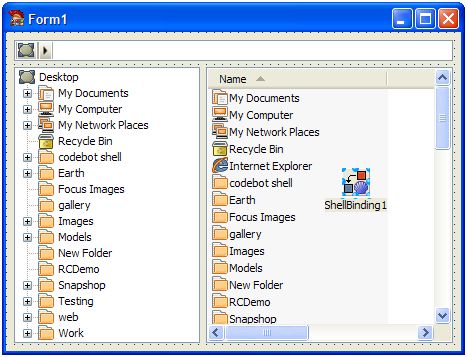
Open Delphi and create a new VCL Forms project. From the Codebot Shell tab, place TShellPathEditBar, TShellTree, TShellView, and TShellBinding on the form. Double-click TShellBinding, select all the controls, and press OK. Press F9 to run the project. You have just built a functional version of Windows Explorer.
Component Overview
TShellBubbles

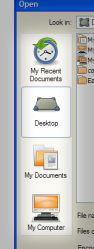
TShellBubbles is a visual control that mimics the left pane of the Open dialog in Windows XP. Like all Codebot Shell Controls, it uses the Windows theming engine and the system shell images. The controls therefore fit the user's computer regardless of the version of Windows being used.
Shell bubbles give users quick access to frequently used or important folders. You can add and reorder bubble items using special-folder paths or paths supplied programmatically. The control can use large or small icons, show or hide text labels, and place labels below or beside a folder icon.
 Key Properties
| Items | A collection of TShellBubbleItem objects. |
|---|---|
| ItemIndex | The index of the current TShellBubbleItem. |
| NavigateRoot | When used with binding, clicking causes the selection or root to update. |
| Style | Controls whether small or large icons are used. |
| TextLabels | Turns text labels on or off. |
| OnClick | A TShellBubbleItem was clicked. Check ItemIndex to determine which one. |
|---|
TShellEdit

TShellEdit is a drop-down edit control that lets the user select a folder. The user can type or edit path names or choose a folder from a drop-down shell tree. You can allow full paths or paths relative to the current folder. Path completion can present a separate suggestion list of folders and files matching the user's input.
TShellEdit and TShellPathEditBar are somewhat mutually exclusive. TShellEdit resembles the Windows XP Explorer address bar, while TShellPathEditBar resembles Vista's breadcrumb navigation bar.
Key Properties| HotTrack | Notifies you when the mouse moves over a new node in the drop-down tree. |
|---|---|
| Options | Options include auto-suggest and short relative paths. |
| Root | The root shell node of the control. |
| SelectedNode | The current shell node displayed in the edit portion. |
| SpecialFolder | Sets a new root using a TSpecialFolder enumeration. |
| StatusText | Controls the text in the drop-down status area. |
| OnNodeHover | A shell node was hovered while HotTrack was enabled. |
|---|---|
| OnSelect | Notification that a new shell node was selected. |
TShellPathEditBar

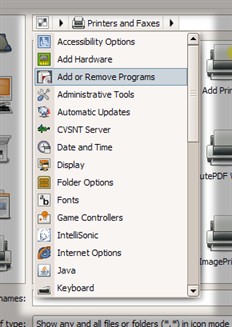
TShellPathEditBar is a Vista-style breadcrumb path bar. Because it is a VCL implementation, it works on Windows 2000 or later. The control offers auto-suggestion, drop-down paths, and a horizontal list of shell nodes separated by arrow glyphs.
Unlike the Vista breadcrumb bar, you can show icons at every node and choose to always draw node buttons. Clicking an empty area lets the user edit the path as text. When no empty area is available, double-click the control or press Space or Enter to enter edit mode.
 Key Properties
| Editing | Toggles between node-arrow input and text input. |
|---|---|
| Root | The root shell node of the control. |
| SelectedNode | The current shell node displayed as the last node in the path. |
| ShowFiles | Shows non-folder nodes in the drop-down lists. |
| ShowSuggest | Shows the auto-suggest list while editing. |
| SpecialFolder | Sets a new root using a TSpecialFolder enumeration. |
| Parse | Converts text into a shell node and assigns it to SelectedNode. |
|---|
| OnChange | Occurs when the selected node changes. |
|---|---|
| OnDefaultAction | Lets you intercept execution of a non-folder node. |
TShellTree

TShellTree is a tree-view control with TShellTreeNode items in place of traditional TTreeNode items. Its items come from the system shell, so they cannot be added or changed without changing the corresponding shell information on the computer. The control is essentially Explorer's left-side tree and updates in real time as shell objects change.
The tree is useful for creating a Browse for Folder dialog or for showing the structure of application data, project files, and resources under a private root. Set the root or selected node to an arbitrary location with code like this:
procedure SetTreeRoot(Tree: TShellTree; const FolderName: string);
var
  Node: TShellNode;
begin
  Node := TShellNode.CreateFromFolder(FolderName);
  Tree.Root := Node;
  Node.Free;
end;
Key Properties
| AllowContextMenu | Allows the default system context menu on right-click. |
|---|---|
| Root | The root shell node. |
| SelectedNode | The currently selected shell node. |
| ShowSuggest | Shows the auto-suggest list while editing. |
| SpecialFolder | Sets a new root using a TSpecialFolder enumeration. |
| OnChange | Occurs when the selected node changes. |
|---|---|
| OnCollapse | Occurs when a node is collapsed. |
| OnExpand | Occurs when a node expands. |
| FindTreeNode | Searches for a node even if it has not yet been created in the tree. |
|---|
TShellView

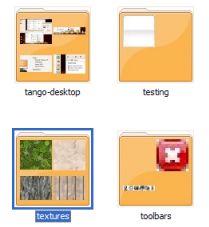
TShellView hosts a real instance of Explorer's content window. Its exact functionality varies by Windows version. For example, Vista users can view very large thumbnails and filter items through header panels. Everything available in the Explorer content pane is available through the shell view.
Useful features include detecting selection changes, filtering items through OnIncludeItem, invoking custom code when an item is double-clicked, and disabling the context menu with AllowContextMenu.
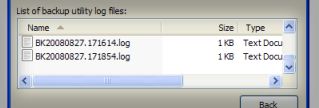
One use is a log-file viewer. Place a shell edit and shell view on a form, point the view at the logging directory, and filter the files to your application's log names. You can sort recent logs first and invoke your own viewer when a log is double-clicked, or allow the default action to open a text log in Notepad.
 Key Properties
| AllowContextMenu | Allows the default system context menu on right-click. |
|---|---|
| DefaultKeys | Translates keys to default actions, such as F2 to rename and Backspace to move up one level. |
| ParentRoot | The topmost shell-node level. This defaults to nil. |
| Root | The root shell node. |
| SelectedNode | The currently selected shell node. |
| SpecialFolder | Sets a new root using a TSpecialFolder enumeration. |
| ViewMode | Selects details, list, icons, thumbnails, or tiles. |
| ExecuteVerb | Invokes a command from the folder's default context menu. |
|---|---|
| Explore | Navigates to a folder given its path. |
| GetItems | Returns view items using selection and path parameters. |
| Refresh | Reloads the current view, including changes to OnIncludeItem filtering. |
| OnDefaultAction | Lets you intercept execution of an item. |
|---|---|
| OnChange | Occurs after navigation to a new root. |
| OnIncludeItem | Lets you filter each shell node as it populates the view. |
| OnSelectionChanged | Fires when the selection changes; use GetItems to inspect it. |
TLargeShellImages and TSmallShellImages


TLargeShellImages and TSmallShellImages are image-list components referring to the system image lists. Their handles are shared, so multiple instances on multiple forms do not increase the application's memory usage. The large list contains normal icons—typically 32×32 pixels, though this depends on user settings. The small list usually contains 16×16 icons. Both lists work with any control that has an image-list property.
TShellBinding

TShellBinding synchronizes changes between shell controls. It is not required, but it removes the programming work of connecting one control's changes to another.
Place the shell controls and a TShellBinding component on the same form. Double-click the binding component to open its editor, select the controls to synchronize, and click OK. With an edit, tree, and view bound together, selecting a node in the tree updates the view root and the edit's selected node and text. Opening a folder in the view updates both the tree and edit controls.
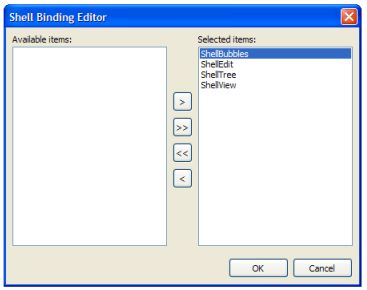
The binding component removes the need to write code such as:
procedure TForm1.ShellBubblesClick(Sender: TObject);
var
  Node: TShellNode;
begin
  Node := ShellBubbles.Items[ShellBubbles.ItemIndex].Node;
  ShellTree.SelectedNode := Node;
  ShellEdit.SelectedNode := Node;
  ShellView.Root := Node;
end;
Notable Classes
The package contains the notable TShellNode class in the ShlTools unit. TShellNode represents an item in the shell namespace.
Working directly with the shell namespace normally requires great care with pointers to system-allocated binary data called item ID lists. You must generally take ownership of their memory and later release it with the system task allocator. TShellNode handles this and other shell-management work for you.
TShellNode provides several constructors:
| Create | Creates a node from a parent and relative list. Either can be nil. If both are nil, the node refers to the desktop. If only the parent is nil, the node is relative to the desktop. |
|---|---|
| CreateFromList | Creates a node using an absolute list. A nil list refers to the desktop. |
| CreateFromObject | Creates a shell node from an IShellFolder object. |
| CreateFromPath | Creates a shell node from a string path. |
| Clone | Clones a node using the specified class type. If the type is nil, it uses the original node's type. |
If you use a constructor that accepts an item ID list, the shell node takes ownership of that list. Do not free it or share it with another newly created node. Freeing a parent node also frees its child nodes and their item ID lists.
Key Properties| AbsoluteList | The node's absolute item ID list. |
|---|---|
| RelativeList | The node's relative item ID list. |
| IsEqual | Determines whether two nodes refer to the same namespace object. |
| Items | Indexed property containing child shell nodes. |
| Count | The number of child nodes. Reading it for the first time enumerates and creates the children. |
| HasChildren | Detects whether child nodes exist without creating them. |
| ShellFolder | The current item's IShellFolder. A nil value indicates a non-folder object. |
| Name | The shell namespace object's name as it appears in Explorer. |
| Path | The object's file path when it resides on disk. |
| Clear | Destroys references and children and uninitializes Count. |
|---|---|
| Execute | Executes a verb from the node's shell context menu. |
| GetAttributes | Retrieves the node's attribute flags. |